Página creada con «=== Connecting the router as a client of a WiFi network === The router allows you to connect as a client of a WiFi network to obtain Internet. The procedure is as follows: *Click on '''NETWORK>WIRELESS''': center|miniaturadeimage|800x800px|WiFi network menu * Click to ''''disable'''' the existing WiFi network and click on the '''''SCAN''''' option: File:Disable wifi.png|center|miniaturadeimage|800x800px|Disable WiFi network AP…»
=== Connecting the router as a client of a WiFi network ===
=== Connecting the router as a client of a WiFi network ===
The router allows you to connect as a client of a WiFi network to obtain Internet. The procedure is as follows:
The router allows you to connect as a client of a WiFi network to obtain Internet. The procedure is as follows:
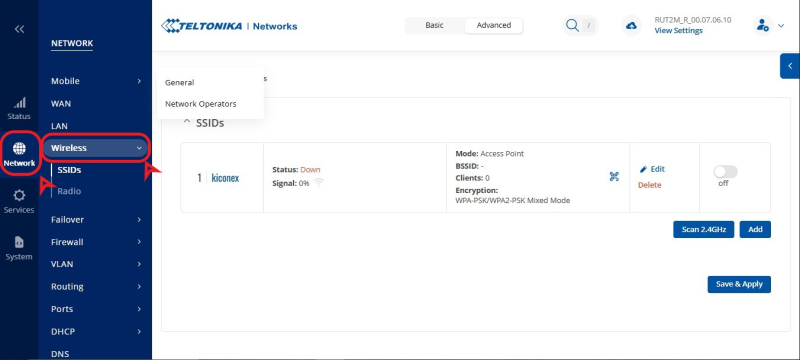
*Click on '''NETWORK>WIRELESS''': [[File:Network-wireless menu.png|center|miniaturadeimage|800x800px|WiFi network menu]]
*Click on '''NETWORK>WIRELESS''': [[File:Network-wireless menu.png|center|miniaturadeimage|800x800px|WiFi network menu]]
Revisión actual - 14:22 27 ago 2024
Connecting the router as a client of a WiFi network
The router allows you to connect as a client of a WiFi network to obtain Internet. The procedure is as follows:
Click on NETWORK>WIRELESS: WiFi network menu
Click to 'disable' the existing WiFi network and click on the SCAN option:
Disable WiFi network AP to scan for other nearby WiFi networks
Click "JOIN NETWORK" on WiFi network you want to connect to:
Scan result for WiFi networks. Select the desired one from Join Network
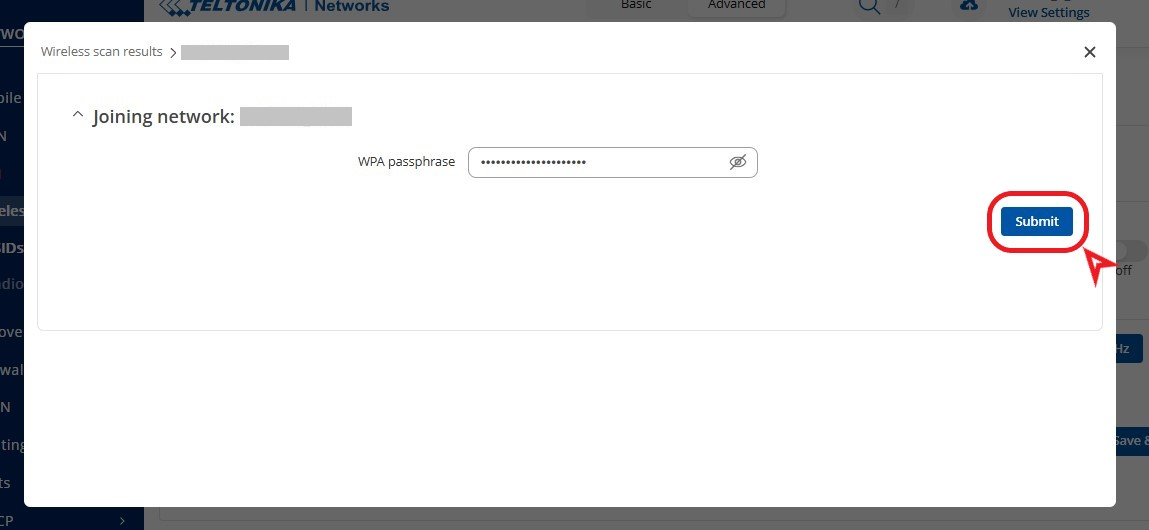
Enter the password for the WiFi network and set a name for the network interface to be created: Password and name for WiFi network to which you connect as a client * Confirm the settings by clicking "SAVE & APPLY":
Confirm WiFi settings set
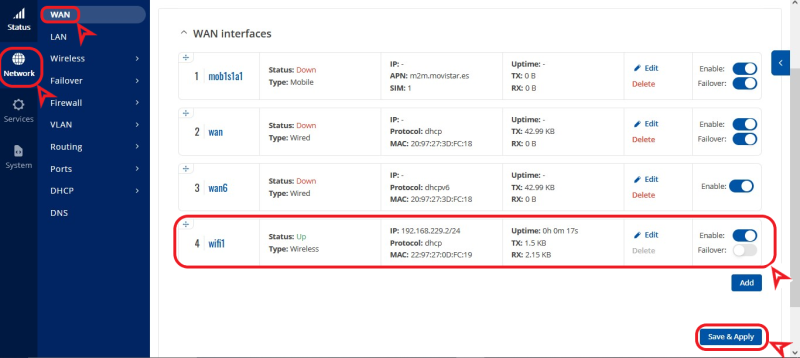
You will be able to see the new network running from the NETWORK>INTERFACES: menu Router connected as a client to a WiFi network