Página creada con «* Connection to a WiFi network as a client. * WiFi network as an access point (AP mode). * 3G/4G connection with an M2M SIM card. * LAN port to connect your ''kiBox''.»
=== Connecting the router as a client of a WiFi network ===
=== Conectar el router como cliente de una red WiFi ===
The router allows you to connect as a client of a WiFi network to obtain Internet. The procedure is as follows:
El router permite conectarse como cliente de una red WiFi para obtener Internet. El procedimiento es el siguiente:
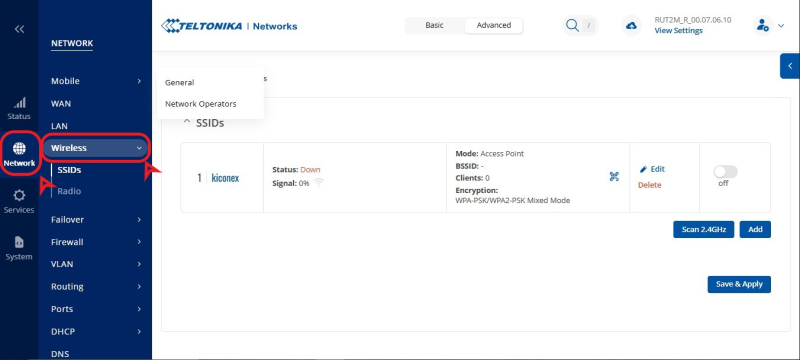
*Click on '''NETWORK>WIRELESS''': [[File:Network-wireless menu.png|center|miniaturadeimage|800x800px|WiFi network menu]]
*Clic en '''NETWORK>WIRELESS''':
* Click to ''''disable'''' the existing WiFi network and click on the '''''SCAN''''' option:
[[Archivo:Network-wireless menu.png|centro|miniaturadeimagen|800x800px|Menú red WiFi]]
[[File:Disable wifi.png|center|miniaturadeimage|800x800px|Disable WiFi network AP to scan for other nearby WiFi networks]]
* Clic para '''deshabilitar''' la red WiFi existente y clic en la opción "'''SCAN'''":
* Click "'''JOIN NETWORK'''" on WiFi network you want to connect to:
[[Archivo:Disable wifi.png|centro|miniaturadeimagen|800x800px|Deshabilitar red WiFi AP para escanear otras redes WiFi cercanas.]]
[[File:SCAN RESULT.png|center|miniatureimage|800x800px|Scan result for WiFi networks. Select the desired one from '''Join Network''']]
* Haga clic en "'''JOIN NETWORK'''" en la red WiFi a la que desea conectarse:
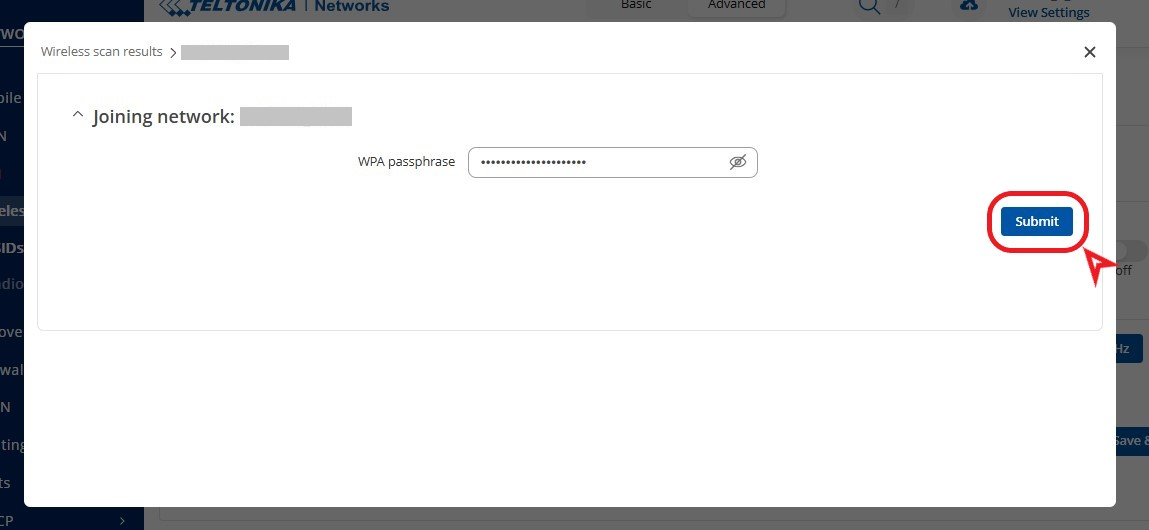
* Enter the '''password''' for the WiFi network and set a '''name for the network interface''' to be created: [[File:Wifi password.png|center|miniaturizedimage|Password and name for WiFi network to which you connect as a client]] * Confirm the settings by clicking "'''SAVE & APPLY'''":
[[Archivo:SCAN RESULT.png|centro|miniaturadeimagen|800x800px|Resultado de la búsqueda de redes WiFi. Seleccionar la deseada desde "''Join Network''"]]
* Introduzca la '''contraseña''' de la red WiFi y configure un '''nombre para la interfaz de red''' que se creará:
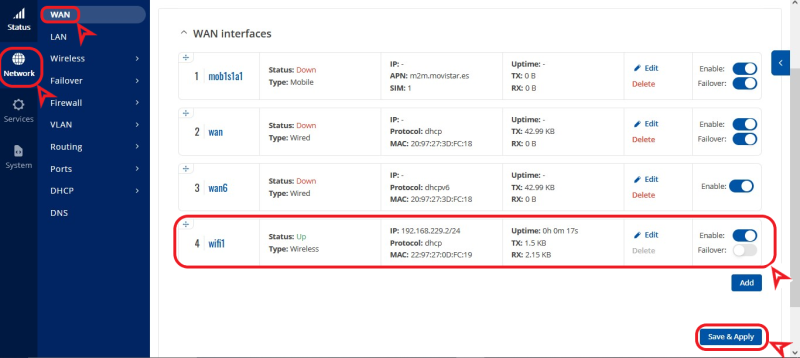
* You will be able to see the new network running from the '''NETWORK>INTERFACES:''' menu [[File:New wifi net.png|center|miniaturadeimage|800x800px|Router connected as a client to a WiFi network]]
[[Archivo:Wifi password.png|centro|miniaturadeimagen|Contraseña y nombre para la red WiFi a la que se conecta como cliente]]
* Confirme los ajustes haciendo clic en "'''SAVE & APPLY'''":
[[Archivo:Confirm wifi settings.png|centro|miniaturadeimagen|800x800px|Confirmar la configuración de WiFi establecida]]
* Podrá ver la nueva red funcionando desde el menú '''NETWORK>INTERFACES:'''
[[Archivo:New wifi net.png|centro|miniaturadeimagen|800x800px|Router conectado como cliente a una red WiFi]]
</div>
<div lang="es" dir="ltr" class="mw-content-ltr">
=== Crear una red WiFi ===
=== Crear una red WiFi ===
Puede crear una red WiFi siguiendo los siguientes pasos:
Puede crear una red WiFi siguiendo los siguientes pasos:
</div>
<div lang="es" dir="ltr" class="mw-content-ltr">
<div lang="es" dir="ltr" class="mw-content-ltr">
Revisión del 16:52 10 abr 2024
= Optional Router =
You can add a 3G router as an accessory in your kiconex order to solve your Internet access problems and which offers the following connectivity options:
To access the router configuration portal, you can connect your computer to the LAN port and type the IP 192.168.0.1:8080 in your web browser.
== Router web portal == When accessing, the router displays the page with a general operating status:
Router status page
In the menu on the left, you have 3 options:
STATUS: displays a menu with the status of the different router tools
NETWORK: the options in this menu allow you to change the router's network configuration
SYSTEM: from here you can change the user password or reboot the router.
In the following sections, you can see how to make a network configuration on the router.
Network configuration
Factory defaults
When you receive a router prepared for use in a kiconex network, the default configuration is:
Priority use of SIM to connect to internet
Use of WAN port to get internet, in case no SIM is used or no coverage
WiFi network with open with the following configuration:
SSID: kiconex
Password: KiconexWiFi
LAN network to connect clients via ethernet cable, in the IP range 192.168.0.0
User access to the web portal:
User: kiconex
Password: 00#Kiconex
Connecting the router as a client of a WiFi network
The router allows you to connect as a client of a WiFi network to obtain Internet. The procedure is as follows:
Click on NETWORK>WIRELESS: WiFi network menu
Click to 'disable' the existing WiFi network and click on the SCAN option:
Disable WiFi network AP to scan for other nearby WiFi networks
Click "JOIN NETWORK" on WiFi network you want to connect to:
Scan result for WiFi networks. Select the desired one from Join Network
Enter the password for the WiFi network and set a name for the network interface to be created: Password and name for WiFi network to which you connect as a client * Confirm the settings by clicking "SAVE & APPLY":
Confirm WiFi settings set
You will be able to see the new network running from the NETWORK>INTERFACES: menu Router connected as a client to a WiFi network
Crear una red WiFi
Puede crear una red WiFi siguiendo los siguientes pasos:
Clic en NETWORK>WIRELESS:
Menú red WiFi
Clic para habilitar la red WiFi existente y clic en el simbolode configuración:
Habilitar red WiFi
Configure el SSID deseado en la sección "GENERAL SETUP":
WiFi SSID
Establezca el cifrado y la contraseña deseados en la sección "WIRELESS SECURITY":
Contraseña WiFi
Haga clic en "SAVE & APPLY" para guardar la configuración.
Haga clic en "SAVE & APPLY" para confirmar la configuración inalámbrica:
Confirmar configuración inalámbrica
Cambiar la configuración de APN móvil
Para cambiar la APN asociada a la SIM de su proveedor móvil, se puede hacer configurando la interfaz correspondiente a la red 3G, MOB1S1A1:
Botón de acceso a la edición de la interfaz de red móbilConfiguración de dirección APN
Cofigurar puerto WAN como LAN
El puerto WAN del router puede ser configurado como un segundo puerto LAN, el proceso es el siguiente:
Clic en NETWORK>INTERFACES:
Deshabilitar las opciones WAN y WAN6:
Aplicar cambio con "Save & apply":
Clic en editar LAN:
Añadir "eth1" en el campo "Interface", dentro de la pestaña physical settings:

 You can add a 3G router as an accessory in your kiconex order to solve your Internet access problems and which offers the following connectivity options: