Diferencia entre revisiones de «Translations:Router/66/en»

De wiki.kiconex
Página creada con «=== Connecting the router as a client of a WiFi network === The router allows you to connect as a client of a WiFi network to obtain Internet. The procedure is as follows: *Click on '''NETWORK>WIRELESS''': center|miniaturadeimage|800x800px|WiFi network menu * Click to ''''disable'''' the existing WiFi network and click on the '''''SCAN''''' option: File:Disable wifi.png|center|miniaturadeimage|800x800px|Disable WiFi network AP…»
 
Sin resumen de edición
 
Línea 1: Línea 1:
=== Connecting the router as a client of a WiFi network ===  
=== Connecting the router as a client of a WiFi network ===
The router allows you to connect as a client of a WiFi network to obtain Internet. The procedure is as follows:  
*Click on '''NETWORK>WIRELESS''': [[File:Network-wireless menu.png|center|miniaturadeimage|800x800px|WiFi network menu]]  

Revisión actual - 13:22 27 ago 2024

Información acerca del mensaje (contribuir)
Este mensaje no tiene documentación. Si sabes dónde o cómo se usa este mensaje, puedes ayudar a los otros traductores añadiendo documentación a este mensaje.
Definición del mensaje (Router)
=== Conectar el router como cliente de una red WiFi ===
El router permite conectarse como cliente de una red WiFi para obtener Internet. El procedimiento es el siguiente:
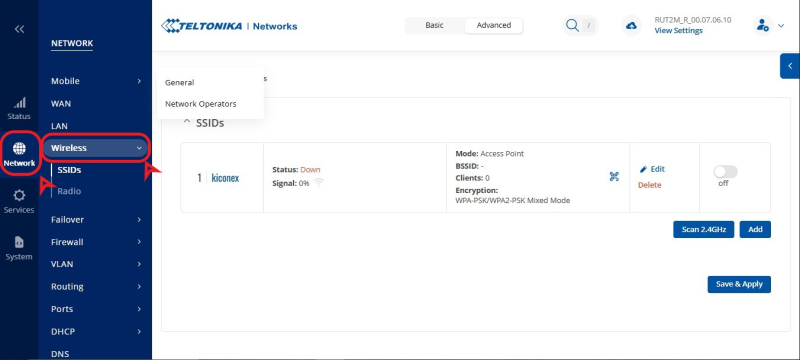
*Clic en '''NETWORK>WIRELESS''':
[[Archivo:Network-wireless menu.png|centro|miniaturadeimagen|800x800px|Menú red WiFi]]
* Clic para '''deshabilitar''' la red WiFi existente y clic en la opción "'''SCAN'''":
[[Archivo:Disable wifi.png|centro|miniaturadeimagen|800x800px|Deshabilitar red WiFi AP para escanear otras redes WiFi cercanas.]]
* Haga clic en "'''JOIN NETWORK'''" en la red WiFi a la que desea conectarse:
[[Archivo:SCAN RESULT.png|centro|miniaturadeimagen|800x800px|Resultado de la búsqueda de redes WiFi. Seleccionar la deseada desde "''Join Network''"]]
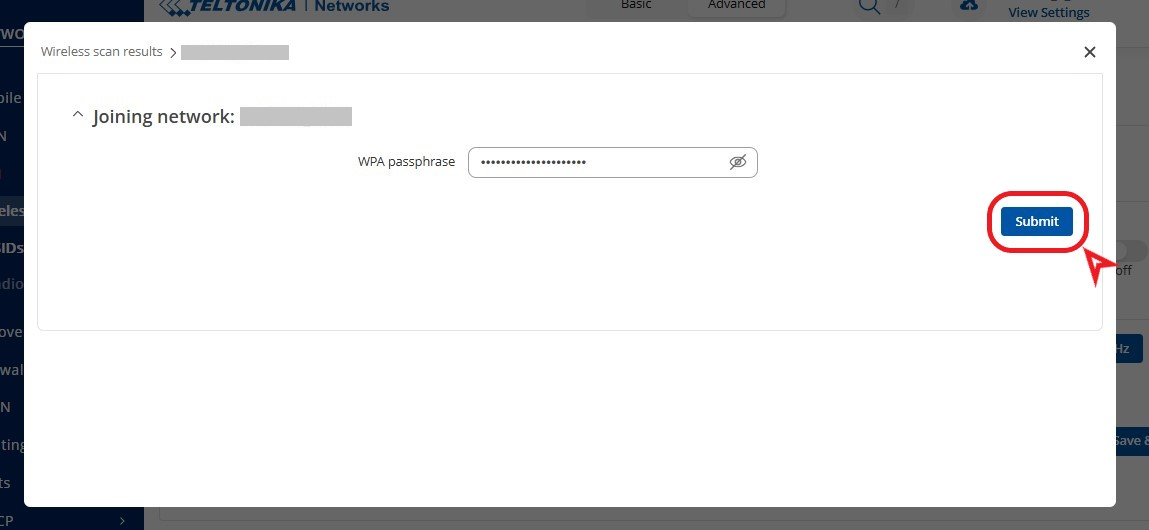
* Introduzca la '''contraseña''' de la red WiFi y configure un '''nombre para la interfaz de red''' que se creará:
[[Archivo:Wifi password.png|centro|miniaturadeimagen|Contraseña y nombre para la red WiFi a la que se conecta como cliente]]
* Confirme los ajustes haciendo clic en "'''SAVE & APPLY'''":
[[Archivo:Confirm wifi settings.png|centro|miniaturadeimagen|800x800px|Confirmar la configuración de WiFi establecida]]
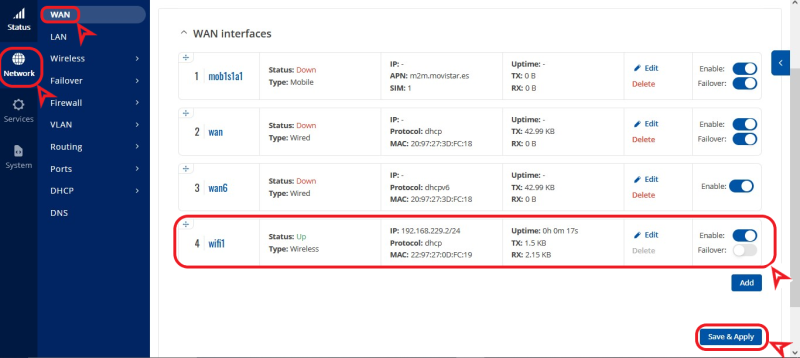
* Podrá ver la nueva red funcionando desde el menú '''NETWORK>INTERFACES:'''
[[Archivo:New wifi net.png|centro|miniaturadeimagen|800x800px|Router conectado como cliente a una red WiFi]]

Connecting the router as a client of a WiFi network

The router allows you to connect as a client of a WiFi network to obtain Internet. The procedure is as follows:

  • Click on NETWORK>WIRELESS:
    WiFi network menu
    WiFi network menu
  • Click to 'disable' the existing WiFi network and click on the SCAN option:
Disable WiFi network AP to scan for other nearby WiFi networks
  • Click "JOIN NETWORK" on WiFi network you want to connect to:
Scan result for WiFi networks. Select the desired one from Join Network
  • Enter the password for the WiFi network and set a name for the network interface to be created:
    Password and name for WiFi network to which you connect as a client
    Password and name for WiFi network to which you connect as a client
    * Confirm the settings by clicking "SAVE & APPLY":
Confirm WiFi settings set
  • You will be able to see the new network running from the NETWORK>INTERFACES: menu
    Router connected as a client to a WiFi network

    Router connected as a client to a WiFi network